Trend Commands

From SysCAD Documentation

Jump to: navigation, search

Navigation: User Guide -> Menu Commands -> Trend Commands

This section shows the Trend Commands in SysCAD 9.2. Refer to Trend Commands in 9.1 for SysCAD 9.1.

There are a number of menu commands and toolbar buttons related to trends. They only become available if a Trend Window is the currently active window.

Contents

Set

Command Button Image:User Guide image190.jpg
Command Path Trend - Set

This opens the Set dialog box, which allows you to set the start time and duration for the Trend Line View.
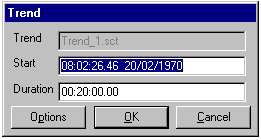
Image:User Guide image191.gif
  • Trend field. This shows you which trend you are editing.
  • Start time. This must be entered in the format HH:mm:ss.hh dd/mm/yyyy.
  • Duration (trend view time span). This must be entered in the format HH:mm:ss.hh
  • OK button. Press this for the changes to take affect. If global time synchronisation is ON then any changes made will be applied to all the trend pages.
  • Press Cancel to abort the changes.

Scroll

Command Path Trend - Scroll

Displays the following scroll options:

Start

Command Path Trend - Scroll - Start

This causes the Trend Line View to scroll to the left (backwards in time) to the start of the trend.

Backward Fast

Command Button Image:User Guide image193.jpg
Command Path Trend - Scroll - Backward Fast

This causes the Trend Line View to scroll to the left (backwards in time) by an amount approximately equal to the current trend duration, i.e. it moves to the previous page.

Backward

Command Button Image:User Guide image195.jpg
Command Path Trend - Scroll - Backward

This causes the Trend Line View to scroll to the left (backwards in time) by an amount approximately equal to a tenth of the current trend duration, i.e. it moves a small amount to the left.

Forward Fast

Command Button Image:User Guide image197.jpg
Command Path Trend - Scroll - Forward Fast

This causes the Trend Line View to scroll to the right (forwards in time) by an amount approximately equal to the current trend duration, i.e. it moves to the next page. Note: You cannot advance beyond the green Time Line.

Forward

Command Button Image:User Guide image199.jpg
Command Path Trend - Scroll - Forward

This causes the Trend Line View to scroll to the right (forwards in time) by an amount approximately equal to a tenth of the current trend duration, i.e. it moves a small amount to the right. Note: You cannot advance beyond the green Time Line.

End

Command Button Image:User Guide image201.jpg
Command Path Trend - Scroll - End
Short Cut Key Ctrl+E

This causes the Trend Line View to scroll to the end. The green vertical Time Line (representing the current time) will be shown towards the right of the view. No trends are visible to the right of the Time Line.

Zoom

Command Path Trend - Zoom

Displays the following Zoom options for the Trend Line View of the Trend Window:

Zoom In

Command Button Image:User Guide image203.jpg
Command Path Trend - Zoom - In
  • This allows you to view a shorter time span in the Trend Line View.
  • It normally halves the view time span, rounding off time to the nearest integer.

Zoom Out

Command Button Image:User Guide image205.jpg
Command Path Trend - Zoom - Out
  • This allows you to view a longer time span of the Trend Line View.
  • It normally doubles the view time span, rounding off time to the nearest integer.


Fit All

This command allows the user to adjust the display range for ALL trend lines in all trend windows in the project.

Range x%

The user may choose to range the trend lines between any of the following: 50, 90, 99 or 100%.

For example:

  1. If the user chooses 100%, then the minimum and maximum display values for all trend lines will be adjusted to equal the minimum and maximum recorded values for each trend line, i.e. the trend line will go from the bottom to the top of the display window.
  2. If 50% is chosen then minimum and maximum display values for all trend lines will be adjusted so that the total range is twice that of the 100% range, i.e. the trend line only covers 50% of the display window.

Range x%, Min 0

The user may choose to range the trend lines between and any of the following: 50, 90, 99 or 100%, with the minimum value always set to 0.

For example:

  1. If the user chooses '100%, Min 0' then the minimum value = 0 and maximum values for all trend lines will be adjusted so that the lines' maximum recorded value is used as the maximum value for the trend display window.
  2. If '50%, Min 0' is chosen then the Minimum value = 0 and the maximum value is set such that the lines will only fill half of the trend display window.

Default

This will use the default values for each trend line. For most trend lines this is 0 - 100, but some models have default values that rely on settings in the model. One such model is the PID, where the minimum and maximum trend display values for the Measured and Output tags are set to the input and output minimum and maximum values.

Auto On

The minimum and maximum display values for trend lines will automatically change to maintain the required scale (as defined above).

Auto Off

The minimum and maximum display values will not change automatically.

Reconnect

Command Path Trend, Reconnect

This command reconnects all the tags for the active Trend Window to the unit models. The Trend Window is refreshed and the tag values are updated. If any tags are invalid, they are reported as errors in the Message Window.

Reconnect All

Command Path Trend, Reconnect All

This command reconnects all the tags in ALL of the Trend Windows in the project to the unit models. The Trend Window is refreshed and the tag values are updated. If any tags are invalid, they are reported as errors in the Message Window.


Record

Command Path Trend, Record

This command records all the tags for the active Trend Window in the historian. The historian must be turned on.


Record All

Command Path Trend, Record All

This command records all the tags for all the Trend Windows. The historian must be turned on.


Options

Command Path Trend, Options

This command opens the Trend Options Dialog Box.

Query

Command Path Trend, Query

This command opens the Trend Query Dialog Box.

Personal tools
Document Sections