Message Window
Navigation: User Guide ➔ Windows ➔ Message Window
| Application Window | Message Window | Graphics Window | Access Window | Explorer Window | Trend Window | Controls Window | TagList Window | Project Window |
|---|
Latest SysCAD Version: 13 May 2026 - SysCAD Build 139.37082
Introduction
The Message Window can be accessed by:
Hot Spots  Left Click to Activate
Menu Option View - Messages

This window is always active and displays any errors, warnings and general information messages. The messages are displayed in the sequence they were generated.
Message Window

The numbers at the top of the message window and on the menu bar (highlighted in yellow) show the total number of errors, warnings and general information messages from all message tabs. Once the project has been solved, the menu bar total excludes the species database message counts.
The numbers in the top right of the message window (highlighted in green) show the total number of errors, warnings and general information messages for the currently selected message tab.
The Clear All button in the top right of the message window will clear all messages from all tab pages. It is recommended that the user presses this prior to each run to ensure that the messages received relate only to the current run. There is an Option 'Clear Messages on run' to do this automatically. The default for this option is 'True'. Individual tab pages can be cleared using the right click pop-up menu, see Clearing Messages below.
Message Types
The messages given are categorised into three types:
- Error (
 )
)
- Some Errors in the project will prevent SysCAD from solving. The "unit model" at fault will appear in RED and error messages will be added to the first tab of the message window. The example below shows errors caused by incomplete connections to unit models:
- Warning (
 ) or
) or
- Warning messages will not stop SysCAD from solving, these may include missing data in the species database, controller out of range and so on. If the source of a message is from a PGM file or PID controller, a green triangle (
 ) is shown to the right of the message icons (, or
  .)
.)
- General Information ().
- Information messages are for feedback information, such as loading, running or saving of project.


General Message Log Tab
- The first tab of the Message Window is used to display general messages, for example conversions loaded or the load time will belong to this category.
- The Tab name displayed depends on the Width of the message window, it can be General Message / Messages / Msg / icon only.
- The number at the top of the tab is the total number of errors, warning and general information messages on this tab.
- When the list is full, a scroll bar will appear to allow the user to view the oldest or newest messages.
Solver Condition Messages Tab
- The second tab of the message window is a solver condition list, which is used for model or solver messages while SysCAD is running or solving.
- The Tab name displayed depends on the Width of the message window, it can be Solver Conditions / Conditions / Cnds / icon only.
- These messages will appear when operating conditions are not normal; for example, tank overflowing or PID controller output high will belong to this category.
- The number at the top of the tab is the total number of errors, warning and general information messages on this tab.
- Once the condition returns to normal, the message will disappear.
Range Check Conditions Tab
- The third tab of the message window is a range check condition list, which is used for range checks while SysCAD is running or solving.
- The Tab name displayed depends on the Width of the message window, it can be Range Checks / Ranges/ Rngs.
- These messages will appear when a range is exceeded; for example, Temperature Range or Negative Liquid Cp will belong to this category.
- The number at the top of the tab is the total number of errors, warning and general information messages on this tab.
- Once the property returns to the defined range, the message will disappear.
Species Database Tab
- The fourth tab of the message window lists the messages related to the loading of the project species database.
- The Tab name displayed depends on the Width of the message window, it can be Species Database / Species DB / SpDB / SDB / icon only.
- If errors are present, they must be corrected before the project can be solved.
- Warnings will be given for missing species database data such as density or Cp.
- The number at the top of the tab is the total number of errors, warning and general information messages on this tab.
- To eliminate the error and warning messages, user needs to update the user species database.
Setting Variations Tab
- The fifth tab of the message window is a list of setting variations.
- The Tab name displayed depends on the Width of the message window, it can be Setting Variations / Settings / Sets.
- These messages will be updated every time the project is run. Examples of these messages include "Solubility switched off" and "Water is not treated as aqueous".
- The number at the top of the tab is the total number of errors, warning and general information messages on this tab.
- Once the variation is corrected, the message will disappear when the project is next run.
Options Tab
- The Sixth tab of the message window contains a series of options (tickboxes) for the user which are explained below:
- Show IDs: Shows the ID column on all tab pages.
- Show Time: Shows time column on all tab pages (only in dynamic projects)
- Show Iterations: Shows the Iteration (Iter), Sequence (Seq) and Call columns on all tab pages.
- Sounds on: Enable sound (beep) when a new message arrives.
- Show window on message arrival: Message window will be activated (come to the top), when a new error or warning message arrives in the currently selected tab (notes do not affect this).
- Clear messages on run: The General Messages, Solver Conditions and Range Check tabs (not the Species Database tab) will be cleared when the project is next solved. This is really useful, as the user will then see only the messages that relate to the current solution.
- Log to file : $Prj\MessageLog.csv: All messages will be logged in a csv file in the main project directory. The messages will be time and date stamped. This file can be opened with Excel or any text editor.
Message Description and Access
Customising the Display
- To remove all messages from all tab pages, press the Clear All button.
- The column widths can be adjusted by dragging the dividers between the headings.
Accessing Units associated with Messages
- Left double-click on a message with a valid tag in the Source column will bring up the Access Window for that tag.
- Right click on a message and a pop-up menu is shown:

- Access - activates the Access Window for the specified tag.
- Find - locates the tag in the Graphics Windows.
- Note: The Access and Find menu options are only shown if the message clicked on has a valid tag in the Source column.
Clearing Messages
- Right click anywhere on the current tab page and a pop-up menu similar to the one shown above appears. The third option will clear all the messages on the current tab only. For example, 'Clear All Solver Condition Messages' will clear the messages on the Solver Conditions tab page only. To clear all messages from all tab pages, press the Clear All button in the top right corner of the message window.
- The Option 'Clear messages on run' may be enabled to clear all messages at the start of every solve (the default state is 'On'). This is useful as it allows the user to see only the messages that are valid for the current run.
Copying Messages
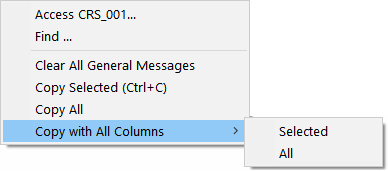
Right click on a message and the copy options are displayed on a pop-up menu as shown here:
- Copy Selected (Ctrl+C) - allows the selected message to be copied as Text Only. This can then be pasted into any text editor for error reporting.
For Example: Project Saved at 11/08/15 10:05:04 (save time 0:46) - Copy All - allows all the messages in the current tab page to be copied as Text Only. This can then be pasted in any text editor for error reporting.
- Copy with All Columns
- Selected - allows the selected message to be copied with all columns (includes error type and error count number)
For Example: N Project 976 Saved at 11/08/15 10:05:04 (save time 0:46) - All - allows all the messages in the current tab page to be copied with all columns (includes error type and error count number)
- Selected - allows the selected message to be copied with all columns (includes error type and error count number)
- Copy Selected (Ctrl+C) - allows the selected message to be copied as Text Only. This can then be pasted into any text editor for error reporting.
