Excel Reports

From SysCAD Documentation

Jump to: navigation, search

Navigation: User Guide -> Reports -> Excel Reports

Contents

Introduction

Microsoft Excel has many functions and features available for presenting data in different formats. Instead of duplicating these functions, SysCAD includes the capability to communicate with Microsoft Excel. This is done in SysCAD by using COM Automation (ie SysCAD communicates with Excel using COM Automation).

There are three main ways SysCAD calls Excel:

  1. Reports where information is transferred from SysCAD to Excel. There are three types of SysCAD Reports available:
  2. Inputs where information is transferred from Excel to SysCAD. Although this is not strictly a report, this is often called a Set Tag Report.
  3. Activate an Excel Macro from SysCAD.

The steps required to successfully run a SysCAD report in any form are as follows:

  1. Create a SysCAD report in Excel. In the following headings, the format of SysCAD reports will be described.
  2. Once the SysCAD report is set up, call it from SysCAD via Options | Reports. This action will open the Excel Automation Reports and Tag Sets Dialog Box.

Location of Reports

  1. Reports may be stored at any location.
  2. If the report is stored within the Project folder, then SysCAD will always create a copy of all connected reports when the user saves the project to a different name, or as a version. (A connected report is a report that has been Added using the Excel dialogue box in SysCAD)
  3. Users may view all connected reports in a project and their locations by accessing the Project Window - Files List dialogue box.

Summary Table of Report Types and Keywords

SysCAD Report Type and Keywords
Type Example Keyword Brief Description or Link to More Information
List SysCAD_TagList("KPI", V, 20) SysCAD Report in a Single Column, Hint: Use Copy Full Tag from SysCAD. This reports SysCAD values to Excel. Use this form to report a group of tags from different unit operation models, for example, the Key Process Indicators for the project.
SysCAD_TagList("KPI", H, 20) SysCAD Report in a Single Row, Hint: Use Copy Full Tag from SysCAD. This reports SysCAD values to Excel. Use this form to report a group of tags from different unit operation models, for example, the Key Process Indicators for the project.
SysCAD_SetTagList("Criteria", V, 20) SysCAD Set Tag Report in a Single Column. This sends values from Excel to SysCAD, best used when setting project criteria before project solve.
SysCAD_SetTagList("Criteria", H, 20) SysCAD Set Tag Report in a Single

Row. This sends values from Excel to SysCAD, best used when setting project criteria before project solve.

Table
simple
SysCAD_TagTable("Inputs", H, 50, 50) SysCAD Report in a Table, Hint: Use Copy Tag from SysCAD. This reports SysCAD values to Excel, the streams will be column headings, and variables are row headings. Best used for overall mass balance tables.
SysCAD_TagTable("Streams", V, 50, 2000) SysCAD Report in a Table, Hint: Use Copy Tag from SysCAD. This reports SysCAD values to Excel, the streams will be row headings, and variables are column headings. Best used for stream data tables.
SysCAD_SetTagTable("Feed", H, 5, 50) SysCAD Set Tag Report in a Table, Hint: Use Copy Tag from SysCAD. This sets values from Excel to SysCAD, the Feeders will be Column headings, and Feed compositions are row headings.
SysCAD_SetTagTable("HX", V, 5, 20) SysCAD Set Tag Report in a Table, Hint: Use Copy Tag from SysCAD. This sets values from Excel to SysCAD, the Heat Exchangers will be row headings, and variables are column headings.
Table
Multi Column
SysCAD_TagTable("MultiCol", H, 2, 25, 3) SysCAD Report in Multi Column blocks, Hint: Use Copy Tag from SysCAD. This reports SysCAD values to Excel, the streams will be column headings, and variables are row headings. In this case, each stream has 3 columns of reported data.
Table
Multi Row
SysCAD_TagTable("MultiRow", V, 6, 3, 5) SysCAD Report in Multi Row Blocks, Hint: Use Copy Tag from SysCAD. This reports SysCAD values to Excel, the streams will be row headings, and variables are column headings. In this case, each stream has 5 rows of reported data.
Table
Select Option
SysCAD_TagSelect("Pipes", V, 30, 1000, Select [Type] == "Pipe" OR ([Type] == "DirectLink" AND [SubClass] =="Makeup"), Orderby [Graphic] [Tag], CearTags: On) SysCAD Tag Select Reports. Please follow link for more information and examples.
Table
with Offset
SysCAD_TagListOffSet(B12, "Case2") Multiple Reports from a Single Row or Column (OffSet). Please follow link for more information and example.
SysCAD_SetTagListOffSet(B22, "Case2") Multiple SysCAD Set Tag Report in a Single Row or Column . Please follow link for more information and examples.

Obtaining Equipment & Pipe List for the Report Generation

When generating the reports, although it is possible to manually enter unit operation or pipe names into the reports, it is much easier to auto generate these lists from SysCAD.

There are a number of ways in which the user can get the lists generated:

  1. From the Explore Window in SysCAD, right click on either the graphic or unit operation type and choose the Copy Tag List to Clipboard option, then paste them into MS Excel to form part of the report.
  2. Use the SysCAD_TagSelect keyword option and enter the required criteria. See SysCAD Tag Select Reports for more information.
  3. Running the General Information Report, this report will create equipment / pipe lists for easy report generation. (This is the old method, Method 1 is now the preferred option.)

Example SysCAD Reports

As part of the SysCAD install, some example SysCAD reports are included. Please find these stored in the \SysCAD92\Examples\01 Example Reports folder.

Get Tag Reports

Basic Format of a simple Get Tag Report

This report is used to obtain the current value of tags. This is essentially a snapshot of the tags at the time the report is generated. SysCAD loads the specified Excel file and searches all the sheets in the workbook for any of the SysCAD Get Tag Report key words such as "SysCAD_TagTable", "SysCAD_Tags" or "SysCAD_TagList". The key words can be on any number of sheets, any quantity of times at any location.

There are several types of Get Tag Reports:

Two examples of simple reports are shown below, all tags in blue are required for the report:

Image:tagtable.pngImage:User Guide image354.gif

  • Format: In the first example, column A is optional, while in the second example, column B is optional. These columns do not form part of the SysCAD report. In the first example, cell B1 contains the key for the report, while in the second example, cell C1 contains the key for the report. The first example is in the form of a function SysCAD_TagTable(Report Name, (Primary) Tag Location - Horizontal or Vertical, Horizontal search length, Vertical search length). The second example is in the form of a function SysCAD_TagList(Report Name, Tag Location - Horizontal or Vertical, Horizontal or Vertical search length). These four common parameters are described below. The first example will create a table of values from the primary tags in cells C1 to E1 combined with the secondary tags in cells B2 to B5. The second example will create a list of values from the full tags in cells C15 to C18.
  • Report Name: This is the name of the report. If required it may be in quotes, eg, SysCAD_TagTable("Bins", H, 4, 4). The report name is only used by SysCAD to find a match if a specific report has been requested. The same report name may be used more than once. This is useful if you want to generate a number of reports at the same time.
  • Tag Location - Horizontal or Vertical: A 'H', 'h', 'V' or 'v' should be entered as the second parameter. If this parameter is invalid then 'V' (vertical) is assumed. If H (horizontal) is entered for a SysCAD_TagTable report then SysCAD expects to find the primary tags in cells to the right of the key word. Similarly, if H (horizontal) is entered for a SysCAD_TagLsit report then SysCAD expects to find the full tags in cells to the right of the key word. If V (vertical) is entered for a SysCAD_TagTable report then SysCAD expects to find the primary tags in cells directly below the key word. Similarly, if V (vertical) is entered for a SysCAD_TagList report then SysCAD expects to find the full tags in cells directly below the key word.
  • Horizontal search length: This parameter is required for all SysCAD_TagTable reports and for SysCAD_TagList reports if Horizontal tag location is selected. This parameter determines how many cells to the right of the key word SysCAD must process. The exact number of columns with tags does not have to be specified. If 5 is specified SysCAD will read five cells looking for tags. The search length must not be large enough to overlap the start of another report on the same row.
  • Vertical search length: This parameter is required for all SysCAD_TagTable reports and for SysCAD_TagList reports if Vertical tag location is selected. This determines how many cells below the key word SysCAD must process. The exact number of rows that contain tags does not have to be specified. The search length must not be large enough to overlap the start of another report in the same column.

The SysCAD key words (such as SysCAD_TagTable and SysCAD_TagList) are not case sensitive and the column/row at which it resides can be hidden to improve the presentation of the report.

The exact SysCAD tag is required when referenced in the report. The SysCAD tag can be copied and pasted into the report. See section on Copy_and_Paste.

When a full tag is copied from SysCAD, the first part of the tag (separated by dots) is the unit tag name. This is usually referred to as the primary tag. The rest of the tag is the secondary tag. Tags are not case sensitive, eg, the secondary tag Qm or QM would both work. The required engineering unit is specified after the secondary tags. The secondary tag and the engineering units are separated by a space. The units are usually placed in round brackets, but this is optional. Engineering units are case sensitive. Check the spelling in SysCAD if different units are needed. If the engineering units requested are invalid or unknown, the result is returned in the SysCAD default SI units.

SysCAD follows the following rules when placing results in the cells:

  • If the primary or secondary or full tag for a cell is blank, the resulting cell is left unchanged.
  • If the relevant cell contains a formula, the cell is left unchanged. The cell is not altered even if the corresponding tag is valid.
  • For SysCAD_TagTable reports, SysCAD generates a full tag by combining the corresponding primary and secondary tags. If this tag does not exist in SysCAD, the cell will be left blank. If the full tag does exist the resulting value in the required units is placed in the relevant cell.

All styles such as fonts, borders, colours, bold text etc are ignored when SysCAD is transferring data. The format styles of the results are not changed when SysCAD writes the values to these cells.

SysCAD provides feedback about the report on a separate sheet with the title Tag Errs. All errors and messages can be viewed on this page after a report has been generated.

The final result is that complex, fancy reports can be set up and used as required.

SysCAD Report in a Table

This report is used to obtain the current value of tags in a table format. Using the keyword SysCAD_TagTable (or SysCAD_Tags), the user can obtain a table of values from SysCAD built up from primary and secondary tags in the row and column headings. An example of a simple report is shown below, all tags in blue are required for the report:

Image:tagtable.png


The syntax for these type of reports is SysCAD_TagTable(Report Name, (Primary) Tag Location (either H or V), Horizontal search length, Vertical search length). These parameters are explained in Basic Format of a simple Get Tag Report.

The exact SysCAD Tag is required when referenced in the report. (The user may use the functionality in the Explorer Window to copy required Tags to Excel) The SysCAD tags can be copied and pasted into the report. The primary tags (cells C1 to E1 in the example) are the unit model names (ie. the name of the pipes, tanks, etc.). The secondary tags (cells B2 to B5 in the example) are the quantities to be measured such as mass flow or temperature. See section on Copy and Paste on how to easily transfer the tags from SysCAD to Excel.

The keyword SysCAD_Tags can be used instead of SysCAD_TagTable.

Hint: The flowsheet that a unit belongs to can be reported using the tag "Graphic", as shown in cell B2 in the example above.

SysCAD Report in a Single Row or Column

This variation of SysCAD Get Tag report is for user wanting to generate a small report, either in a straight row or column. Using the keyword SysCAD_TagList, the user can obtain a list of values from SysCAD using full tags in the adjacent row or column. Some examples are as follows:

For Report in a single Row:

Image:User Guide image353.gif

The results are always placed in the row directly underneath the SysCAD Tags.

For Report in a single Column:

Image:User Guide image354.gif

The results are always placed in the column directly adjacent to the SysCAD tags.

The syntax for these type of reports is SysCAD_TagList(ReportName, Tag Location (either H or V), Search Length). These parameters are explained in Basic Format of a simple Get Tag Report. Note that the search length should not be too large so that it overlaps with a different report. The full SysCAD tags in blue are required as part of the report set up.

SysCAD Tag Select Reports

This Excel report returns all the model tags based on an SQL type statement. For the first parse, SysCAD returns all the model tags, then for the second parse it returns all the data in the same way as a SysCAD TagTable Report.

This report is identical to the SysCAD_AutoTags report which was previously used in SysCAD 9.1.

The syntax is: SysCAD_TagSelect(ReportName, (Primary) Tag Location (either H or V), Horizontal search length, Vertical search length, Option1, {Option2,...})

The first four parameters are the same as the standard SysCAD TagTable Report. The { } denotes optional parameters.


The Options may be provided in any order and are not case sensitive. There may be any number of options. The main options for an SQL type statement are:

a) SELECT Expression
Defines a boolean expression selecting the subset of primary tags required for the report. This is constructed from Fieldnames and Operators.
  1. FieldName's (ie SysCAD tags) are of the form [FieldName {(cnv)}] where the cnv (eg t/h) is optional and is ignored in the OrderBy expressions
  2. Valid Operators are (, ), <, <=, ==, !=, <>, >=, >, AND, OR, NOT, LIKE. The expression follows standard evaluation rules.
The following example will select all pipes on Graphics page 05_Flowsheet
Select [Type]=="Pipe" and [Graphic]=="05_Flowsheet"
The following example will select all Washer and Thickeners on all Graphics pages
Select [Type] == "Washer" or [Type] == "Thickener"'
The LIKE operator keyword can be used to extend the select statement to match parts of strings. The string used for comparison uses the standard Regular Expression Syntax. For example to match any number of characters use ".*".
The following example will select all models (pipes or units) that include the character "P" in the tag
Select [Tag] like ".*P.*"
The following example will select all pipes or direct links that have a tag starting with "P_"
Select ([Type]=="Pipe" or [Type]=="DirectLink") and [Tag] like "P_.*"'
b) ORDERBY FieldName ASC/DES {FieldName2 ASC/DES} {FieldName3 ASC/DES}…
Defines the sort sequence of the results. Where Asc is short for ascending and Des is short for descending. If Asc or Dec is not specified, Asc is used. The full word can be used "OrderBy [Tag] Ascending" rather than "OrderBy [Tag] Asc".
Example: Select [Type]=="Pipe", OrderBy [Graphic] [Tag]
Example: Select [Type]=="Pipe", OrderBy [Graphic] Dec [Tag] Asc

Additional options are:

c) CLEARTAGS: ON/OFF.
If this is ON, the Primary Tags will cleared beyond the range where valid tags exist and within the MaxRow/MaxCol count. The default setting is OFF which is used if this option is not specified.
d) CLEARRANGE: ON/OFF.
If this is ON, then the area of the report (as specified by MaxRow and MaxCol count) is cleared before generating the report. Formatting of all cells is retained. NOTE: All cells, including cells with formulas, are cleared. The default setting is OFF which is used if this option is not specified.
e) CLEAR: ON/OFF.
This is a combination of the two options CLEARTAGS and CLEARRANGE.


Notes:

  1. A useful secondary tag which can be used with a Tag Select report is the tag "graphic". This will return the name of the graphics page that the model appears on. Note that this secondary tag can only be used with the SysCAD_TagSelect command. It does not work with the SysCAD_TagTable command.
  2. Please make sure when writing the Tag Select expression, there is a space between the expression and the condition. For example, when typing Select [Type]=="Pipe", be sure to type in the space between Select and [Type], if not, the expression will return an error and the statement is ignored.

Useful Examples of Tag Select Report:

Stream Reports Examples

The Tag Select report is very useful for generating reports to Auto create a pipe list - to update changes in the project, pipe name change, addition, deletion and so on.

1) To create a stream report that auto generates the list for Pipe and Makeup stream for the entire project, use:

  • SysCAD_TagSelect("Pipes", V, 30, 1000, Select [Type] == "Pipe" OR ([Type] == "DirectLink" AND [SubClass] =="Makeup"), Orderby [Graphic] [Tag], ClearTags: On)

2) To create a stream report for a specific graphic page, use:

  • SysCAD_TagSelect("Pipes", V, 30, 1000, Select [Graphic]=="05_Flowsheet" AND ([Type]=="Pipe" OR ([Type] == "DirectLink" AND [SubClass] =="Makeup")), OrderBy [Tag] Asc)

3) To create a stream report that looks for specific conditions, for example, solids flow > 20% OR check velocity calculations use:

  • SysCAD_TagSelect("Pipes", V, 30, 1000, Select ([Type] == "Pipe" OR ([Type] == "DirectLink" AND [SubClass] =="Makeup")) AND [Qo.Sf (%)]>20 , Orderby [Graphic] [Tag])
  • SysCAD_TagSelect("Report1", V, 10, 42, Select [Eqn.Diam (mm)] > 10, OrderBy [Graphic] Des [Eqn.Diam] Asc [Vel] Asc, NAN:nan)
Reaction Block Information

1) To create a list for all the unit operations including pipes that is using the reaction block sub model. The resulting information can then be used set up a reactions report.

  • SysCAD_TagSelect("Reactions", H, 80, 1, Select [EB.Reactions]<>0 or [Reactions]<>0, OrderBy [Graphic] Asc [Tag] Asc)
Overall Mass Balance

Reports that are useful in creating an Overall Mass Balance are:

1) To get a list of all the feeders in a project (excluding those that are connected):

  • SysCAD_TagSelect(Feeders, V, 1, 100, Select [Type]=="Feed_XPG" AND [State]==1, OrderBy [Graphic] Asc)

2) To get a list of all the sinks in a project (excluding those that are connected):

  • SysCAD_TagSelect(Feeders, V, 1, 100, Select [Type]=="Feed_XPG" AND [State]==2, OrderBy [Graphic] Asc)

3) Use the following to get a list of all the Makeup flows:

SysCAD_TagSelect("Makeups", V, 30, 1000, Select ([Type] == "DirectLink" AND [SubClass] =="Makeup"), Orderby [Graphic] [Tag])

4) To get a list of all the feeders in a project (including those that are connected) on a single graphic (this may be useful when performing a mass balance on a single graphics page):

  • SysCAD_TagSelect(Feeders, V, 1, 100, Select [Graphic]=="05_Flowsheet" AND [Type]=="Feed_XPG" AND ([State]==1 OR [State]==3, OrderBy [Graphic] Asc)
Water / Steam Balance

Reports that are useful in creating a plant water / steam balance:

1) The Water / Steam Mass change values are reported on the Unit operation's Access Window - Links Tab. The following report can be used to report the Nett.Qm.H2O(l) (t/h) and Nett.Qm.H2O(g) (t/h) values for the project.

  • SysCAD_TagSelect("test", V, 10, 1000, Select [Type] !="Pipe" AND [Type] !="DirectLink" AND [Type] !="CArea" AND [Type] !="GControl" AND [Type] !="PIDControl", Orderby [Type] [State] [Tag] )

Multiple Reports from a Single Row or Column (OffSet)

This report format is most useful for users wanting to compare key results in a summary table for multiple scenarios or runs under various conditions. To do so, the user will first set up a report using SysCAD_TagList in a single row or column. (See column B.) Then the user can use key word SysCAD_TagListOffSet(cell reference, Report Name) to point to the SysCAD_TagList Report, columns D, E, F and G are examples of such (See Cell D12). As before, writing in blue forms the SysCAD report, both column B and row 12 can be hidden when presenting the report for neatness.

Importantly different report names must be used for each column. Then after solving a model for each case/scenario then when the report is generated the corresponding report name must be used when genarating the report. (Using '*' as the report name will populate all the columns when the desired behaviour is to populate one column.)

Image:User Guide image356.gif

Once the report is set up, the user may use a command script (see section on Command Scripts) or the automation macro interface (see section on COM Automation) to automate the process of running and reporting on multiple cases.

SysCAD report in Multi Column Blocks

This is an extension to the SysCAD TagTable Report. The extra functionality is explained by the example below.

The syntax used is SysCAD_TagTable(Report Name, (Primary) Tag Location (either H or V), Horizontal search length, Vertical search length, Primary Tag block Size). The key word SysCAD_Tags can be used instead of SysCAD_TagTable.

These parameters are explained in Basic Format of a simple Get Tag Report except for the following:

Horizontal Search Length: This differs to the basic format in that it does not count how many columns, but counts how many blocks. In the example below, the Horizontal search length is 2, the Primary Tag block size is 3, this means that there are two Primary Tags, and they will be located 3 columns apart.

Primary Tag Block Size: This additional parameter allows the user to specify the block size for each Primary tag. Eg, in the following example, we have specified 3, this means for each Primary Tag, there are three columns of data.

Image:User Guide image351.gif

In the above example, the writing in blue and Shaded Cells are user-defined information, note also that blank cells are allowed.

SysCAD report in Multi Row Blocks

This is an extension to the SysCAD TagTable Report. The extra functionality is explained by the example below.

The syntax used is SysCAD_TagTable(Report Name, (Primary) Tag Location (either H or V), Horizontal search length, Vertical search length, Primary Tag block Size). The key word SysCAD_Tags can be used instead of SysCAD_TagTable.

These parameters are explained in Basic Format of a simple Get Tag Report except for the following:

Vertical Search Length: This differs to the basic format in that it does not count how many rows, but counts how many blocks. In the example below, the Vertical search length is 3, the Primary Tag block size is 5, this means that there are three Primary Tags, and they will be located 5 rows apart.

Primary Tag Block Size: This addition parameter allows the user to specify the block size for each Primary tag. Eg, in the following example, we have specified 5 - this means for each Primary Tag, there are five rows of data.

Image:User Guide image352.gif

In the above example, the writing in blue and Shaded Cells are user-defined information, note also that blank cells are allowed.

Set Tag Reports

Basic Format of a Simple SysCAD Set Tag Report

This report is used to set the configuration variables in a process unit via the excel spreadsheet. No calculated variables (presented in grey boxes in the access window) can be set.

Any watched variables defined by the General Controller Model that are not read only can be set through the Set Tag Values Report.

SysCAD loads the specified Excel file and searches all the sheets in the workbook for any of the SysCAD Set Tag key words such as SysCAD_SetTags or SysCAD_SetTagList. The key words can be on any number of sheets, any quantity of times at any location.

There are several types of Set Tag Reports:

The report format, rules and features are as per Basic Format of a simple Get Tag Report.

SysCAD provides feedback about the report on a separate sheet with the title SetTag Errs. All errors and messages can be viewed on this page after a report has been generated.

SysCAD Set Tag Report in a Table

This report is used to set configuration variables from a table in Excel. Using the keyword SysCAD_SetTagTable (or SysCAD_SetTags), the user can set a table of values into SysCAD using primary and secondary tags in the row and column headings. An example of a simple report is shown below, all tags in blue are required for the report:

Image:settagtable.png

The syntax for these type of reports is SysCAD_SetTagTable(Report Name, (Primary) Tag Location (either H or V), Horizontal search length, Vertical search length). These parameters are explained in Basic Format of a simple Get Tag Report.

In this example the first two columns are optional, they do not form part of the SysCAD report. The key word for the report is located in cell C1.

The exact SysCAD Tag is required when referenced in the report. The SysCAD tags can be copied and pasted into the report. The primary tags (cells D1 to F1 in the example) are the unit model names (ie. the name of the pipes, tanks, etc.). The secondary tags (cells C2 to C5 in the example) are the quantities to be set such as mass flow or temperature. See section on Copy and Paste on how to easily transfer the tags from SysCAD to Excel. Cells D2 to F5 contain the unit's configuration data, these numbers will be read and used by SysCAD.

The keyword SysCAD_SetTags can be used instead of SysCAD_SetTagTable.

SysCAD Set Tag Report in a Single Row or Column

This variation of SysCAD Set Tag report is for users wanting to process a small amount of information into SysCAD, either in a straight row or column. Using the keyword SysCAD_SetTagList, the user can set a list of values in SysCAD using full tags in the adjacent row or column. Some examples are as follows:

For Report in a single Row:

Image:User Guide image361.jpg

The tag values should always be placed in the row directly underneath the SysCAD Tags.

For Report in a single Column:

Image:User Guide image362.gif

The tag values should always be placed in the column directly adjacent to the SysCAD tags.

The syntax for these type of reports is SysCAD_SetTagList(ReportName, Tag Locatiion (either H or V), Search Length). These parameters are explained in Basic Format of a simple Get Tag Report. The full SysCAD tags in blue are required as part of the report set up.

Multiple SysCAD Set Tag Report in a Single Row or Column

This report format is most useful for user using script command files for multiple SysCAD Runs. For example, the simulation is solved with different feed flowrates. To do that, the user will set up a report similar to the one below, the values in the Case 1 column will be used to solve for the first case, then the values for the Case 2 will be read in and the project is resolved. (For more information on setting up command script files please refer to Command Scripts.)

If using the traditional basic report format, two identical reports will have to be set up to input the different specification values. However, using this variation of the report format, the user will first set up a report using SysCAD_SetTagList in a single row or column. Then the user can just refer to the SysCAD Tags typed in for the previous case using the syntax SysCAD_SetTagListOffset(Cell location of the SysCAD_SetTagList key word, ReportName). Tags in Blue are required as part of the report set up.

Example:

Image:User Guide image363.gif

General Information Report

The General Information Report is a default auto generated type report, that is, the user has no control on how the information is displayed and the Report will be overridden every time it is re-generated.

To generate this type of report, the steps needed are:

A) Options - Reports
B) On the Reports Tab page, press Add
C) With the Report dialog open, Select General Information from the Type list box AND browse for an existing excel file.
D) Press OK to return to Excel Automation Dialog box.
E) Press Generate.
F) Activate Excel, two new worksheets called "Tag Info0" and "Tag Info1" have been added to the MS Excel file which contain general flowsheet tag information.


The information displayed in the Tag Info0 (subject to change) include:

o A simple Equipment List - Listing all of the unit operations used in the project
o A simple Pipe List - Listing all of the Pipe/Links used in the project (with connectivity)


If the project was solved (or resolved) prior to the report generation,

o A simple Evaluation Order List - Listing all pipes in the order it is evaluated.


The information displayed in the Tag Info1 (subject to change) include:

o A simple Component List - Listing all of the chemical compounds used in the project.


HINT: Users can use information generated in this report to create other reports, eg, the pipe list can be used to create a GetTag Report containing data for all streams in the project.

Trend Report

This report is used to obtain historical information. Therefore, all variables that have been recorded by the historian through the trend page can be reported via the Excel Trend Report.

SysCAD loads the specified Excel file and searches all the Sheets for the keyword TrendReport(ReportName). This key word can be on any number of sheets, any quantity of times at any location. A SysCAD trend report will return a series of data on a time basis and default Excel XY scatter chart can be generated automatically by using the DoChart function.

An example report is presented below. The report is identified with the keyword TrendReport(Report Name).

TrendReport(example) Allpoints() Duration(1:00:00) Location("Sheet1",30,2) Headings() Time(Seconds) TimeFull() TimeDate()
GC_1.d1 GC_1.d2

SysCAD expects to find a number of other function key words to the right of the TrendReport keyword. These extra functions are used to configure the trend report. They can be in any sequence and some are optional as illustrated by the different examples above. SysCAD keeps processing functions to the right of the key word until a blank cell is found.

A location must be specified. One of the three report type functions AllPoints, AvePoints or EndPoints must be specified. Tip: for the AvePoints and EndPoints options specify 1 more than the number of time intervals required. For example: if you want 1 minute intervals over a full hour you require 61 points or 25 points for 1 hour intervals over a full day.

The report time frame must be specified using a valid combination of the Start, End and Duration options. As illustrated in the examples this could be:

  1. Start and End;
  2. Start and Duration;
  3. End and Duration;
  4. Duration.

For option 4 where only the duration is specified, it is assumed that the end time is the current SysCAD simulation time.

SysCAD looks for the reporting variables (or tags) starting in the cell directly below the TrendReport key word. It then searches the cells horizontally until a blank cell is found.

The reporting variables (or tags) may be placed in column (vertical) form under the keyword SysCAD_TrendReport(ReportName). There should be at least one (up to 5) blank cells between the keywords and the tags. For example:

SysCAD_TrendReport(example)
Allpoints()
Duration(1:00:00)
Location("Sheet1",30,2)
Headings()
Time(Seconds)
TimeFull()
TimeDate()
--Leave a Blank Line--
GC_1.d1
GC_1.d2

In the above examples two tags are used. If valid full tag is not entered or the variable is not recorded in the historian, SysCAD will ignore the variable and returns an error message.

SysCAD provides feedback about the report on a separate sheet with the title Trend Errs. All errors and messages can be viewed on this page after a report has been generated.

Location(Worksheet, row, column)
Start(Full SysCAD time and date)
End(Full SysCAD time and date)
Duration(Duration time)
AllPoints() - Reports all recorded data points.
AvePoints(number of points) - Reports the defined number of data points using time-weighted average.
EndPoints(number of points) - Reports the defined number of data points using value at the end of the time period.
Headings() - Returns a row using variable tags as column headings in the report.
TimeDate() - Includes a column with the time value in an Excel Date-Time format.
TimeFull() - Includes a column with the time value as a full string.
Time(units) - Includes a column of time values as numbers starting from zero. The valid time unit options are Seconds, Minutes, Hours, Days.
NOTE SysCAD only looks at the first letter of these options, so by example Time(h) as well as Time(hours) are valid options.
DoChart(name) - Creates a default excel XY scatter chart.

More Examples of trend reports are shown below:

TrendReport(example1) AvePoints(7) Duration(0:01:00) Start(08:00:00.00 27/09/2005) Location("Sheet1",1,2) Headings() Time(Seconds) TimeFull() TimeDate()
GC_1.d1 GC_1.d2


TrendReport(example2) EndPoints(7) Duration(0:01:00) End(10:00:00.00 27/09/2005) Location("Sheet1",15,2) Headings() Time(Seconds) TimeFull() TimeDate()
GC_1.d1 GC_1.d2

Example Results are as follows:

For Example 1 above:

Time Time Seconds GC_1.d1 GC_1.d2
08:00:00.00 27/09/2005 38622.33 0 3.601 45.3016
08:00:10.00 27/09/2005 38622.33 10 2 6.5
08:00:20.00 27/09/2005 38622.33 20 3.6 16.5
08:00:30.00 27/09/2005 38622.33 30 4.6 26.5
08:00:40.00 27/09/2005 38622.33 40 5 36.5
08:00:50.00 27/09/2005 38622.33 50 4.8 46.5
08:01:00.00 27/09/2005 38622.33 60 4.3 56.5

For Example 2 above:

Time Time Seconds GC_1.d1 GC_1.d2
09:59:00.00 27/09/2005 38622.42 0 2 2
09:59:10.00 27/09/2005 38622.42 10 2 12
09:59:20.00 27/09/2005 38622.42 20 4 22
09:59:30.00 27/09/2005 38622.42 30 5 32
09:59:40.00 27/09/2005 38622.42 40 5 42
09:59:50.00 27/09/2005 38622.42 50 3 52
10:00:00.00 27/09/2005 38622.42 60 8 61

Adding and Executing the Excel Report in SysCAD

Once the SysCAD Report is set up in MS Excel using the formats described in the previous headings, the report can be called from SysCAD by command Options | Reports.

This action opens the Excel Automation Reports and Tag Sets Dialog Box, which is used to get SysCAD data to or from MS Excel. This dialog box consist of three tab pages:

  • The Reports Tab page, which is used to send data from SysCAD to MS Excel; report types GetTag reports, General Information Reports and Trend reports can be added by using this tab page.
  • The Set Tags tab page, which is used to get data from MS Excel to SysCAD. And
  • The Macro Tab page, which is to run an Excel macro. Only one report type can be selected at a time. The various options in this dialog will be described in the following headings.


Excel Automation Reports and Tag Sets Dialog Box

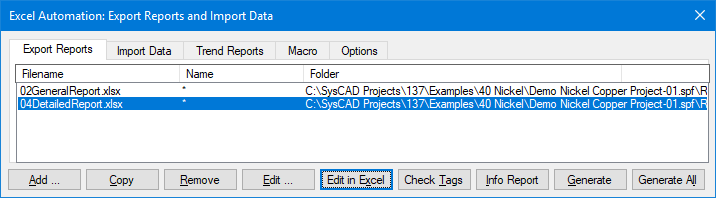
The SysCAD Report dialog box is as follows.

Image:User Guide image364.gif

Filename column: The filename of the Excel spreadsheet file for the report.

Name column: The name of the report required, * represents all reports in the specified file.

Type column: The report type required (eg: Tag Values or Trend).

Folder column: The path location of the specified file.

Add button: Used to add a new report to the list. (See heading Adding an Excel Report to SysCAD for more information.)

Delete button: Used to remove the currently selected report from the list.

Edit button: Used to change the options (eg. path) for the currently selected report. This does not open the file for editing purposes.

Edit in Excel button: Opens the currently selected report in MS Excel for editing.

Generate/Process button: Generate get tag / trend report in the Reports tab page or Process report in the set tags tab page. This button will call the Excel automation functions to transfer the data between Excel and SysCAD. NOTE: data is not linked between the two software packages, transfer will only happen once whenever this button is pressed.


Done button: Exits this dialog box.

Generate All/Process All button: Generates ALL get tag / trend reports in the Reports tab page or Processes ALL reports in the set tags tab page. This button will call the Excel automation functions to transfer the data between Excel and SysCAD. NOTE: data is not linked between the two software packages, transfer will only happen once whenever this button is pressed.

Options button: This will open the Advanced Report Options dialog box. It allows you to lock excel while SysCAD is busy reporting and so on.

Image:User Guide image365.gif

When a report is generated or processed, SysCAD accesses Excel using Automation. SysCAD searches for any opened copies of Excel, if Excel is not started, SysCAD will start it and make it the active application. If more than one copy of Excel is opened, it uses the first copy it finds. If the option Update remote and external references when opening Excel file is selected, any excel files containing links will be updated upon opening.

When an instance of Excel is opened or found, SysCAD will search for the report file. If the file is already opened and saved, it will be used for the report. If the file is opened and has been changed, SysCAD will return an error message prompting the user to save the Excel spreadsheet and try again.

When SysCAD has finished generating/processing the reports, it saves the spreadsheet. Any errors encountered will be reported in the Excel spreadsheet.

Reports may be generated while SysCAD is running or solving. However, it is recommended that reports be generated when SysCAD is stopped as it is faster and the values obtained will be synchronised (that is, if SysCAD is running values obtained may be from different iterations).

TIPS:

The user should NOT select the Always Make Excel Active when generating a Report option for faster report generation. Also, please NOTE that SysCAD reporting becomes EXCESSIVELY slow if Excel is in "page break view". Please make sure the spreadsheet is in normal view while a report is being generated. WARNING

Do not edit a spreadsheet while SysCAD is busy writing to it, as the report generation will be cancelled otherwise. Use the Lock Excel while generating option to avoid accidentally stopping the reporting. Always save the Excel spreadsheet before using SysCAD reporting.


Adding an Excel Report to SysCAD

With the Excel Automation Reports and Tag Sets Dialog Box opened, user may call an existing SysCAD Excel report by adding it to the appropriate tab page. That is, a SysCAD GetTag report must be added to the Reports Tab and SetTag Report must be added to the Set Tags tab and so on.

When the Add button is pressed, it opens the following dialog box, note this was opened from the Reports tab, so the report type available are: General Information, Get Tag Values and Trend. This list will be different if the Add button was pressed from, for example the Set Tags Tab page.

Image:User Guide image366.gif

  • The Report name may be entered if user wants to produce only one report within the Excel Workbook.
  • The report type must be selected.
  • The user may use the Browse button to find the MS Excel workbook containing the SysCAD report.
  • Press OK to close this dialog box and return to the Excel Automation Reports and Tag Sets dialog box.


NOTE: if the report is of the General Information type, all you have to do is nominate the MS Excel workbook it has to be added to, it requires no report set up or report name.


Executing an Excel Report

There are a number of ways to execute the SysCAD reports:

  • The easiest is to press the Generate / Process button with the Excel Automation Reports and Tag Sets Dialog Box is opened. This button will call the Excel automation functions to transfer the data between Excel and SysCAD. NOTE: data is not linked between the two software packages, transfer will only happen once whenever this button is pressed.
  • Execute from a SysCAD Script file.
  • Set up the report to be called from a SysCAD Task Model.


DDE Reporting

SysCAD reports can also be created using Dynamic Data Exchange. See DDE for details.

Starting and running SysCAD from MS Excel

A macro can be set up in MS Excel to start SysCAD. A command script file can be included in the macro to perform various commands in SysCAD. An example of the macro is given below.

Sub StartSysCAD()

Application.Save
RetVal = Shell("c:\SysCAD92\bin\syscad92.exe c:\SysCAD92\Examples\SS_Alumina\Digestion.spf\Digestion.ssc", 1)

End Sub


NOTE: If the user has strong programming background, he/she can set up complex visual basic codes to drive SysCAD entirely from MS Excel if required. This may be useful if the user is in the feasibility study phase where the SysCAD flowsheet can remain untouched and many sets of test cases need to be performed.

A simple example is given in a project called Digestion.xls located in the ..\SysCAD92\Examples\SS_Alumina\Digestion.spf folder. The macro contained in this workbook allows the user to modify and create a simple command script file, then SysCAD can be started and the generated command script file is executed.

Personal tools
Document Sections